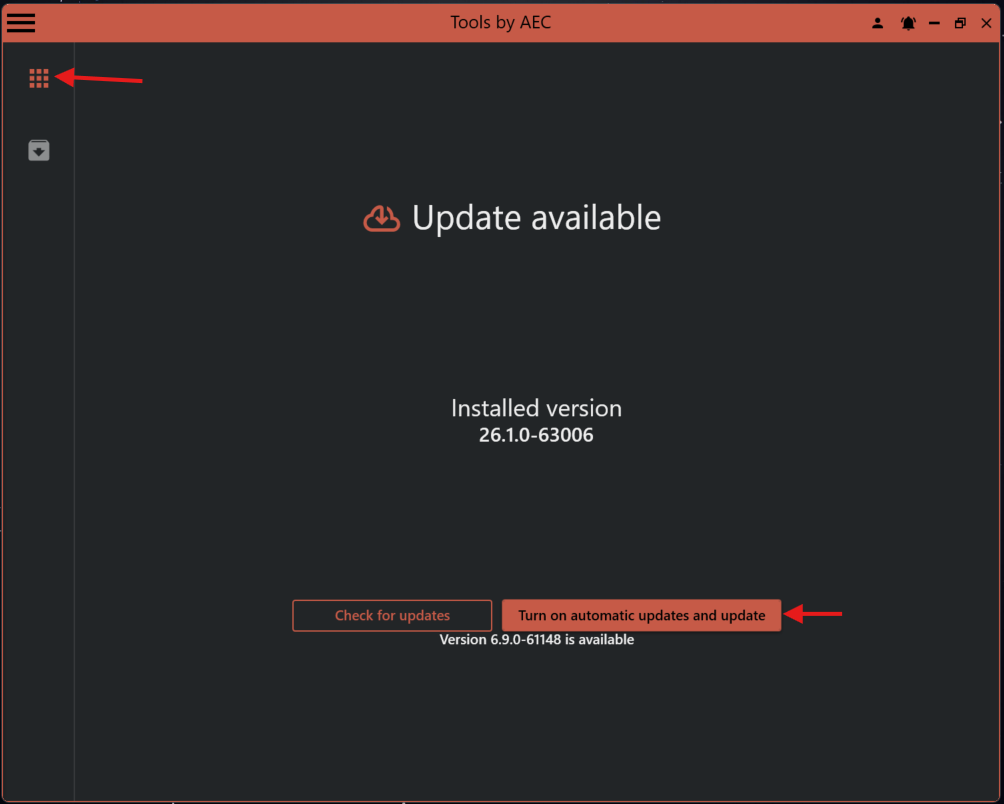
¶ Assistant Installer
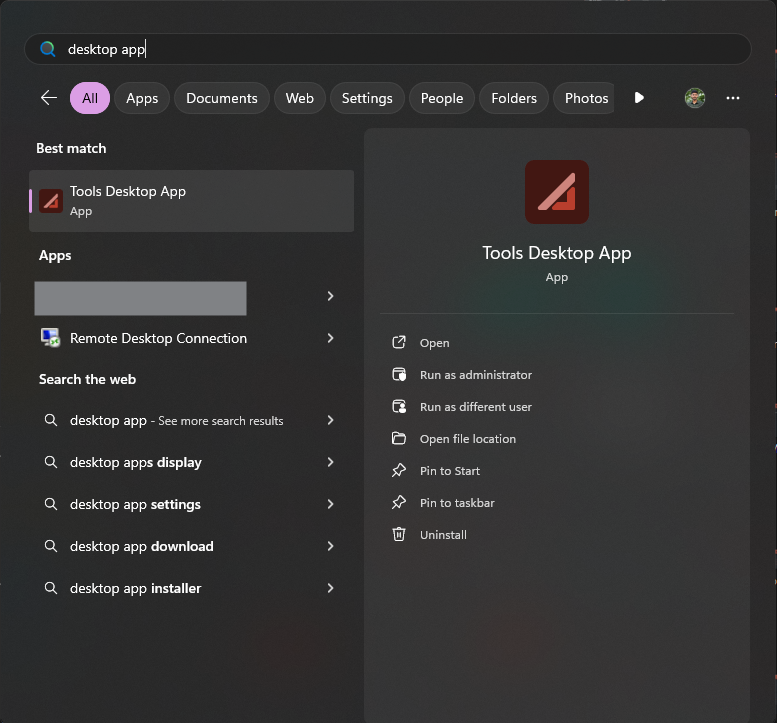
Assistant Installer can be found in the Windows start menu:
Assistant will be kept up to date with the standalone Assistant Installer.
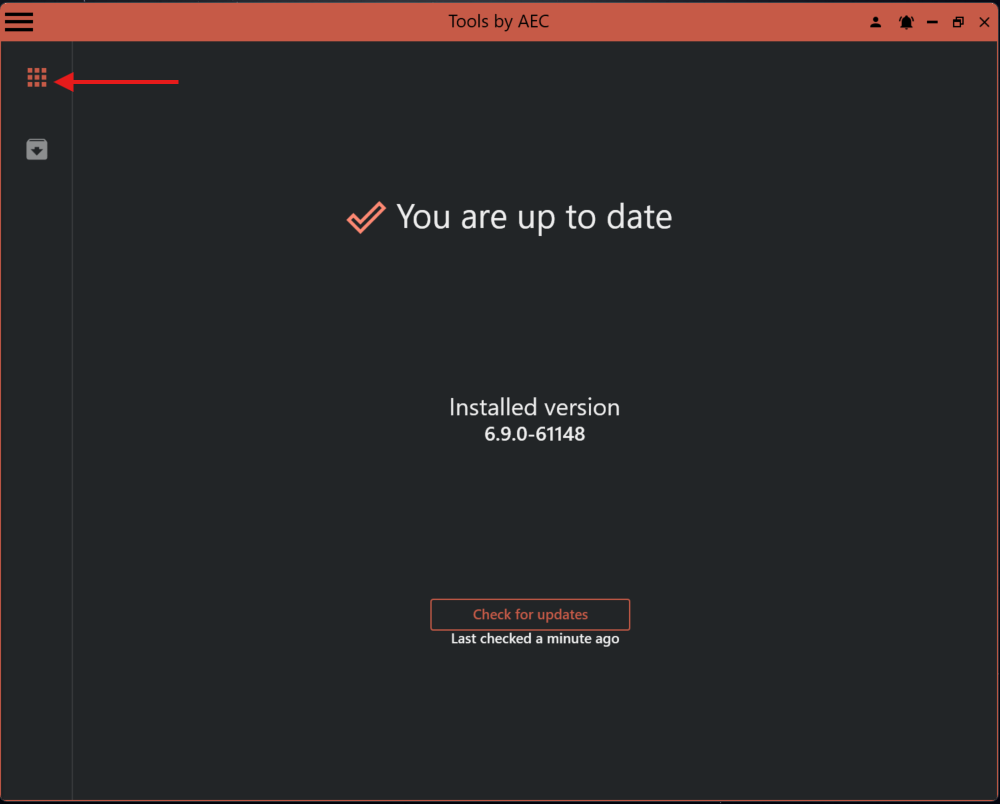
On startup, after the newest version of Assistant is installed this will be the default view.
The default version setting is to be up to date with the "latest stable" version.
¶ Selecting a specific version of Assistant
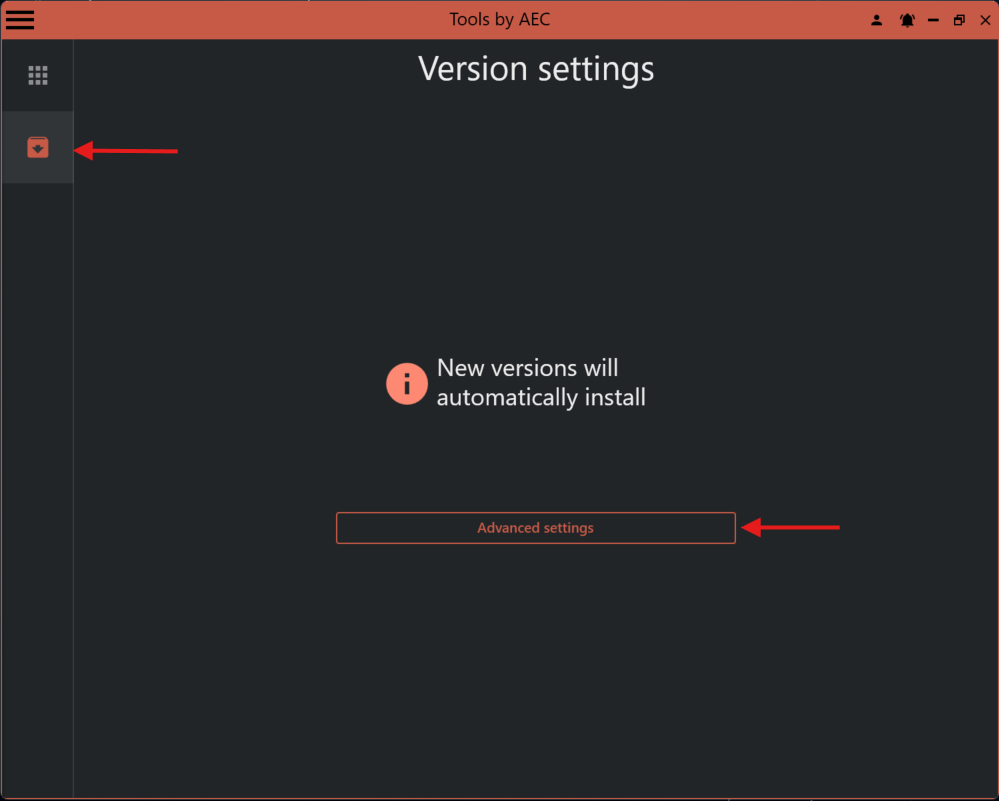
Click "Advanced settings" to install a specific version.
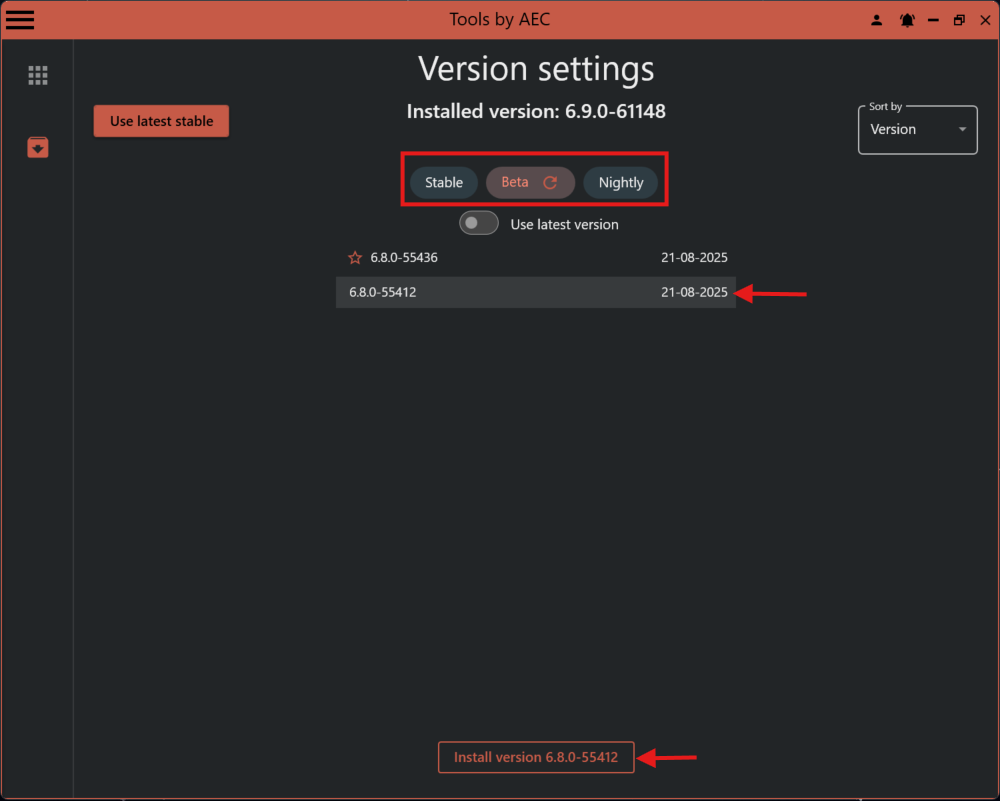
Select "Stable", "Beta" or "Continuous" and the desired version.
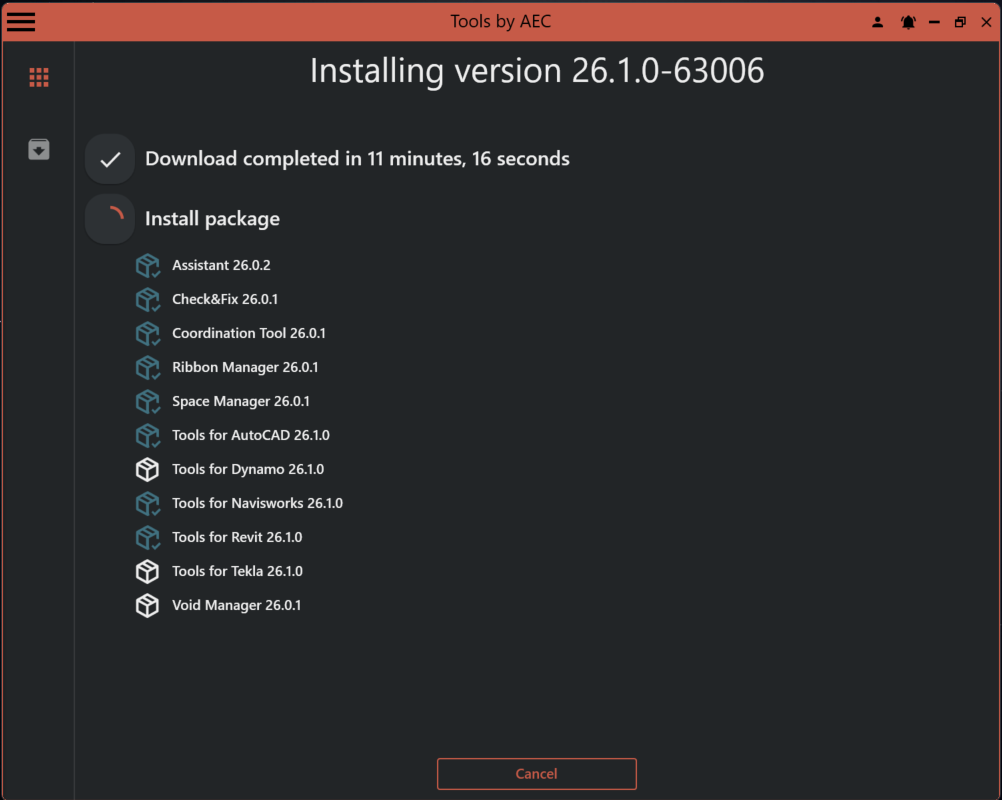
When "Install and lock to version xxx" is clicked, the selected version of Assistant will be installed and locked. This means that if a newer version is available, Assistant Installer will not automatically update Assistant.
¶ Use automatic updates
This is the default behavior of Assistant Installer.
If you previously have locked to a version, turn on automatic updates by following the example below.